Ergonomics for Joint Health: How to Optimize Your Workstation and Posture
 Apr, 21 2026
The Blueprint for a Pain-Free Workstation
Getting your setup right isn't about buying the most expensive gear; it's about geometry. If your monitor is too low, you strain your neck. If your chair is too high, you put pressure on your thighs. To protect your joints, you need to aim for "neutral posture," where your body is aligned and under the least amount of stress.Start with your chair. Your feet should be flat on the floor with your thighs parallel to the ground. For most adults, this means a seat height between 16 and 21 inches. If your feet dangle, you're putting unnecessary pressure on your lower back. Ensure your chair has adjustable lumbar support that hits the L3-L4 spinal level-the small of your back-to prevent that dreaded slouch.
Next, look at your monitor. A common mistake is placing the screen directly at eye level. Actually, you want the top of the screen at or slightly below eye level, creating a natural downward gaze angle of about 15 to 20 degrees. Position the monitor 20 to 30 inches from your face. If it's too far, you'll lean forward (the "turtle neck"); too close, and you'll strain your eyes and neck muscles.
Your arms are the next priority. Your elbows should maintain a 90 to 110-degree angle. This specific positioning is a game-changer; research from Cornell University shows this angle reduces shoulder muscle activity by 40%, which directly protects your rotator cuff from strain. Your keyboard should be at a height (usually 22-27 inches) that allows your shoulders to stay relaxed, not hunched.
| Component | Ideal Position/Measurement | Joint Benefit |
|---|---|---|
| Chair Height | 16-21 inches (Feet flat) | Reduces lower back pressure |
| Monitor Distance | 20-30 inches from eyes | Prevents neck strain/leaning |
| Elbow Angle | 90-110 degrees | Lowers rotator cuff stress |
| Wrist Position | 0-15 degrees extension | Cuts carpal tunnel risk by 43% |
Tackling the Wrist and Hand Struggle
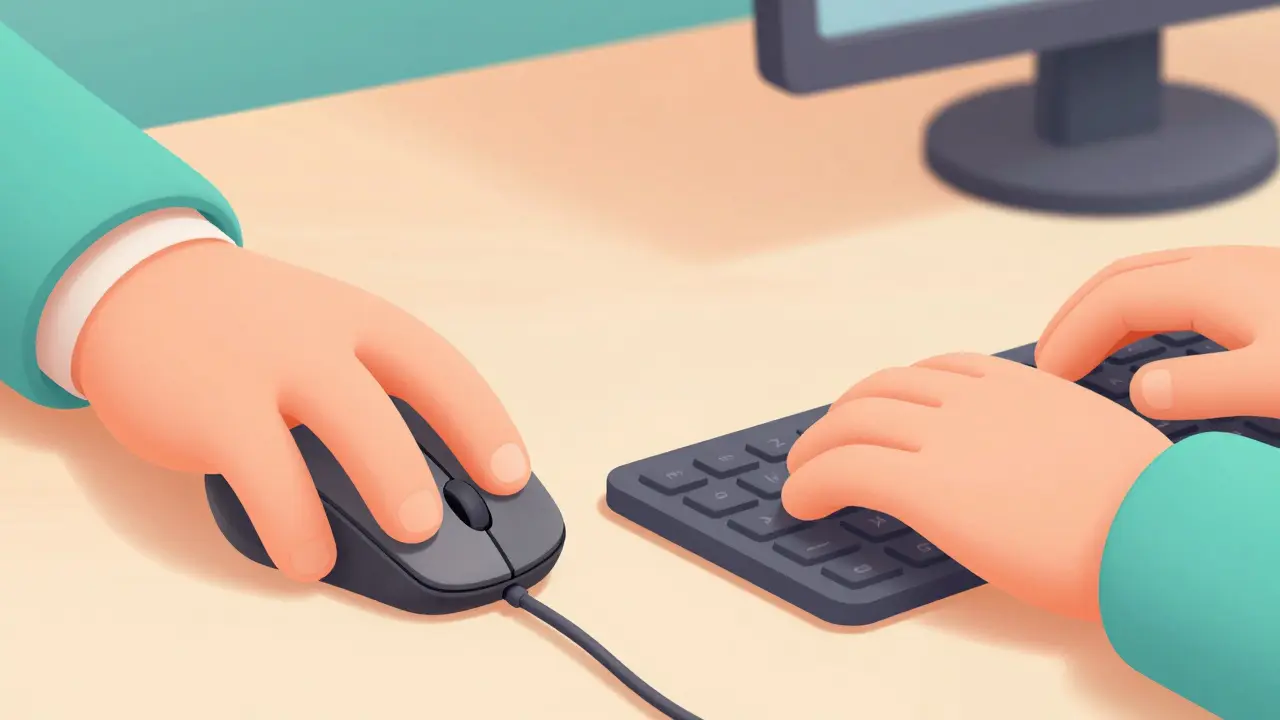
Wrist pain is one of the most common complaints in the modern office. Carpal Tunnel Syndrome is a condition where the median nerve is compressed as it passes through the wrist. Most of this happens because we use "ulnar deviation," which is just a fancy way of saying we bend our wrists outward to fit a flat keyboard.To stop this, look for an ergonomic keyboard with a negative tilt. This means the back of the keyboard is lower than the front, which keeps your wrists in a neutral position. Switching from a standard flat keyboard to one with a negative tilt can reduce wrist extension by up to 25 degrees. Similarly, a vertical mouse allows your hand to stay in a "handshake" position, reducing pressure on the carpal tunnel by 50% compared to a traditional mouse.
Keep your mouse within 1 to 3 inches of your keyboard. If you have to reach far to the right every time you click, you're creating a repetitive strain on your shoulder and upper back. It sounds like a small distance, but over 8 hours a day, that reach adds up to miles of unnecessary movement.
The Movement Paradox: Why a Great Chair Isn't Enough
Here is the hard truth: the best Ergonomic Chair is a chair designed to support the body's natural curves and reduce musculoskeletal strain cannot save you if you never move. Static loading is when you hold one position for too long, which restricts blood flow to your joints and fatigues your muscles.This is where the "microbreak" comes in. The American Physical Therapy Association suggests taking a break every 30 minutes for just 30 to 60 seconds. Stand up, stretch your arms, or simply roll your shoulders. These tiny resets can reduce static loading on your joints by 28%. If you can, invest in a sit-stand desk. The ability to switch between sitting and standing throughout the day prevents any single joint from taking the brunt of the load for too long.
However, be careful with the transition. If you've sat for ten years and suddenly stand for eight hours, you'll likely end up with foot and lower back pain. The trick is a gradual build-up. Start by standing for 20 minutes every two hours and slowly increase your standing time as your body adapts.

Common Pitfalls and How to Avoid Them
Many people buy a high-end chair and a fancy desk but still feel pain. Why? Usually, it's because of a few common miscalibrations.- The Monitor Height Trap: Many people set their monitor at eye level, but forget that the human eye naturally looks slightly downward. This can actually increase the load on your cervical spine. Use the "fist test": ensure there is about one fist's width of space between your eyes and the top of the screen.
- The Lumbar Gap: If your chair's lumbar support is too low or too high, it's useless. It should fit snugly into the curve of your lower back (the L3-L4 region). If there's a gap, you'll instinctively slouch to find support, which ruins your posture.
- The "Budget" Ergonomic Myth: Be wary of cheap "ergonomic" chairs under $200. Often, these lack actual adjustability in the lumbar region, resulting in significantly less pain reduction compared to a professionally engineered chair.
Your Step-by-Step Setup Guide
If you're overwhelmed, follow this 45-minute protocol to reset your workspace. Don't rush it-precision is what protects your joints.- Chair Calibration (15 mins): Adjust the height so your feet are flat and your thighs are parallel to the floor. Adjust the lumbar support until it fills the curve of your lower back.
- Monitor Positioning (10 mins): Use a monitor arm or a riser to get the top of the screen slightly below eye level. Move it back until it's about arm's length away.
- Input Device Alignment (10 mins): Place your keyboard so your elbows are at a 90-110 degree angle. Position your mouse immediately next to the keyboard to eliminate reaching.
- Document Placement (10 mins): If you use paper notes, put them on a document holder between your keyboard and monitor. Looking down at a desk to read a page and then up at a screen is a recipe for neck strain.
Is a standing desk better than a sitting desk?
Neither is "better" on its own; the best option is movement. Sitting too long causes lower back compression, but standing too long can lead to leg fatigue and varicose veins. A sit-stand desk allows you to alternate, which is the gold standard for joint health. Aim to switch positions every 30 to 60 minutes.
How do I know if my chair has good lumbar support?
Good lumbar support should feel like it is pushing gently into the curve of your lower spine, preventing you from slouching. If the support is a fixed plastic piece that doesn't move up or down to fit your specific height, it likely isn't providing the necessary support for your L3-L4 vertebrae.
Can a vertical mouse really help with wrist pain?
Yes. Traditional mice force your forearm to twist (pronation), which puts pressure on the carpal tunnel. A vertical mouse keeps your hand in a neutral "handshake" position, which can reduce carpal tunnel pressure by up to 50%. Just be prepared for a 2-3 week adaptation period while your muscles get used to the new angle.
What is the 'neutral wrist position' and why does it matter?
Neutral wrist position means your wrist is straight, with 0-15 degrees of extension (not bent up or down). When you bend your wrists up to type on a flat keyboard, you increase the pressure on the median nerve. Maintaining a neutral position can reduce the risk of developing carpal tunnel syndrome by as much as 43%.
How often should I actually take breaks?
The current recommendation is a microbreak every 30 minutes. This can be as simple as a 30-60 second stretch or a quick walk to get water. These breaks prevent "static loading," where your muscles stay contracted for long periods, restricting blood flow and causing joint stiffness.